DPI-Aware Window
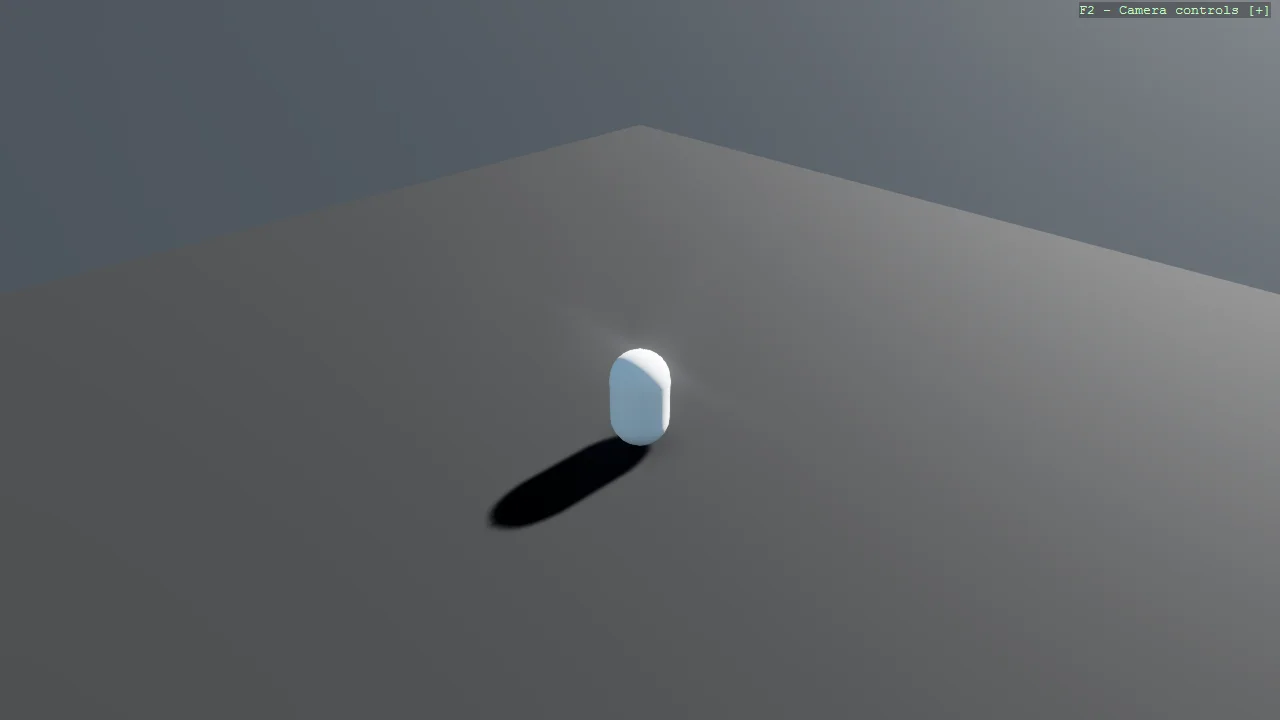
The capsule scene again, with two differences. One is not in the C# at all: an app.manifest declaring the process per-monitor DPI aware, referenced from the csproj. Without it Windows scales the window itself on a high-DPI display and the result is a blurred, upscaled image. The other is what a sharp window then needs: with Windows no longer enlarging anything, 16-pixel text on a 150% display is two thirds the height it should be, so DisplayScale reads the display's factor and the overlay follows it - the help text is the same size to the eye on any monitor. The example exists because the first fix is invisible in the source, so it is easy to conclude that Stride renders badly when the real cause is a missing manifest.
The Program.cs file shows how to:
- Why a high-DPI display renders a blurred window without a manifest
- Declaring per-monitor DPI awareness in app.manifest
- Wiring the manifest in with
- The code alternative, WindowsDpiManager.EnablePerMonitorV2(), and why a project uses one route, not both
- Reading the display's scale factor with DisplayScale, and why the overlay follows it by default
- Using helpers: SceneSetup3D, UseSkybox, CreatePrimitive
View on GitHub.
using Stride.CommunityToolkit.Bepu;
using Stride.CommunityToolkit.Engine;
using Stride.CommunityToolkit.Rendering;
using Stride.CommunityToolkit.Rendering.ProceduralModels;
using Stride.CommunityToolkit.Rendering.Text;
using Stride.CommunityToolkit.Skyboxes;
using Stride.Core.Mathematics;
using Stride.Engine;

// This example declares the process per-monitor DPI aware in app.manifest, wired in with
// <ApplicationManifest> in the csproj. Without that declaration Windows stretches the window on a
// high-DPI display and the image is blurred. The declaration has to happen before the window
// exists, and a manifest is read before any code runs, so it always does.
//
// The other examples make the same declaration from code instead, one line before new Game():
//
//     WindowsDpiManager.EnablePerMonitorV2();
//
// from the core package (namespace Stride.CommunityToolkit.Engine) - see E02_2D_EasingBasics or E09_3D_Particles_Gallery.
// The call also works in a file-based app, which has no project file to hold a manifest. Use one
// route, not both: when a manifest exists Windows refuses the call, and the manifest's setting wins.

using var game = new Game();

game.Run(new SceneSetup3D().UseBepu().UseSkybox(), start: (Scene rootScene) =>
{
    game.Window.AllowUserResizing = true;
    game.Window.Title = "DPI-Aware Window";

    var entity = game.CreatePrimitive(Primitive3D.Capsule());

    entity.Transform.Position = new Vector3(0, 8, 0);

    entity.Scene = rootScene;

    // The manifest makes the window sharp; this is the other half. With the process DPI-aware,
    // Windows no longer enlarges anything, so 16-pixel text on a 150% display is two thirds the
    // height it should be. DisplayScale reads the display's factor - from SDL here, from Stride's
    // ScaleFactor on a Retina screen - and the overlay follows it by default, which is why the
    // help text you are reading is the same size to the eye on any monitor. Drag the window to a
    // differently scaled monitor and the figure below follows.
    var displayScale = DisplayScale.GetOrCreate(game);

    DebugOverlay.GetOrCreate(game).AddSection("DPI", () =>
    [
        new($"Display scale: {displayScale.Value:0.##}  (detected {displayScale.Detected:0.##})", Color.Yellow),
        new("This text is drawn that much larger than its 16px design", Color.LightGray),
        new("Without the manifest it would read 1:", Color.LightGray),
        new("Windows would be stretching the window", Color.LightGray),
    ]);
});