2D Material
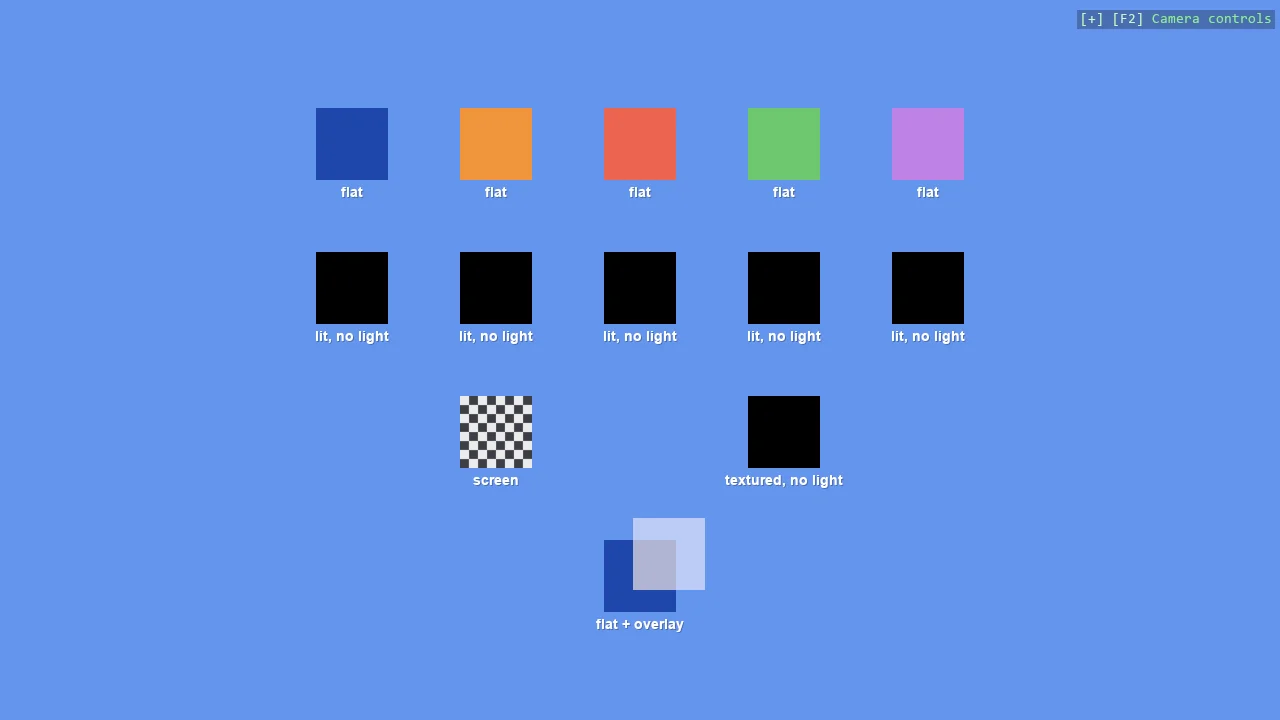
What each material helper does on a flat shape, in four rows of squares: the flat material a 2D scene wants, the same colours as a lit material, black because nothing in a 2D scene lights them, a checkerboard built in code as a screen material and as a lit textured one, and a translucent overlay drawn over a square.
The Program.cs file shows how to:
- CreateFlatMaterial, the colour as given, which is what a 2D scene wants
- Why a lit CreateMaterial is black in a scene with no light
- A texture built in code with TextureLoader.FromPixels
- CreateScreenMaterial, the unlit texture, against the lit CreateTexturedMaterial
- CreateOverlayMaterial for a translucent shape drawn over another
- Labelling entities with EntityTextComponent
- Using helpers: SceneSetup2D, CreatePrimitive
View on GitHub.
using Stride.CommunityToolkit.Engine;
using Stride.CommunityToolkit.Rendering;
using Stride.CommunityToolkit.Rendering.ProceduralModels;
using Stride.CommunityToolkit.Rendering.Text;
using Stride.Core.Mathematics;
using Stride.Engine;
using Stride.Graphics;
using Stride.Rendering;

// What each material helper does on a flat shape, one per row of squares. A 2D scene has no light,
// so it wants a flat material: the colour as given, from every angle. The second row is the same five
// colours as a lit material, the kind CreateMaterial makes for 3D, and it is black - a lit material
// shows nothing until a light falls on it, which is the whole reason 2D uses flat. The third row puts
// a texture on a shape the two ways, and the last row draws a translucent overlay over a square.
// E02_3D_Material is the 3D twin, where the lit material is the point.

// The five colours of the first examples
Color[] colours = [new(30, 70, 170), new(240, 150, 60), new(235, 100, 80), new(110, 200, 110), new(190, 130, 230)];

using var game = new Game();

// No physics, so the squares stay where they are put, and no ground, so the rows have the screen
game.Run(new SceneSetup2D { Ground = null }, start: Start);

void Start(Scene scene)
{
    var checker = Checkerboard();

    // Row 1: the flat material, the one a 2D scene wants
    for (var i = 0; i < colours.Length; i++)
    {
        Square(scene, i, 3f, game.CreateFlatMaterial(colours[i]), "flat");
    }

    // Row 2: the same colours as a lit material. Black: nothing lights them, and a lit material is
    // the light's reflection, not the colour itself
    for (var i = 0; i < colours.Length; i++)
    {
        Square(scene, i, 1f, game.CreateMaterial(colours[i]), "lit, no light");
    }

    // Row 3: a texture the two ways. A screen material is unlit and clamped at the edges, the way a
    // picture should be; a textured material is lit, so here it is black too
    Square(scene, 1, -1f, game.CreateScreenMaterial(checker), "screen");
    Square(scene, 3, -1f, game.CreateTexturedMaterial(checker), "textured, no light");

    // Row 4: an overlay is unlit and translucent, for a zone or a marker drawn over the scene; here
    // over a flat square, a little in front of it
    Square(scene, 2, -3f, game.CreateFlatMaterial(colours[0]), "flat + overlay");

    var overlay = Square(scene, 2, -3f, game.CreateOverlayMaterial(new Color(255, 255, 255, 110)), label: null);

    overlay.Transform.Position += new Vector3(0.4f, 0.3f, 0.1f);
}

// One square in a column and a row, labelled below
Entity Square(Scene scene, int column, float y, Material material, string? label)
{
    var entity = game.CreatePrimitive(Primitive2D.Square(), new() { Material = material });

    entity.Transform.Position = new Vector3(-4f + 2f * column, y, 0f);

    if (label is not null)
    {
        entity.Add(new EntityTextComponent
        {
            Text = label,
            FontSize = 14,
            Anchor = Anchor.TopCenter,
            Offset = new Vector2(0, 40),
            EnableShadow = true,
        });
    }

    entity.Scene = scene;

    return entity;
}

// A texture built in code, so the example runs with no asset: 64 pixels square, eight-pixel checks
Texture Checkerboard()
{
    const int Size = 64;
    const int Check = 8;

    var pixels = new Color[Size * Size];

    for (var y = 0; y < Size; y++)
    {
        for (var x = 0; x < Size; x++)
        {
            var light = (x / Check + y / Check) % 2 == 0;

            pixels[y * Size + x] = light ? new Color(235, 235, 235) : new Color(60, 60, 70);
        }
    }

    return TextureLoader.FromPixels(game.GraphicsDevice, pixels, Size, Size, new TextureLoadOptions(TextureRole.Color));
}