Stride UI - Button Hover Animation
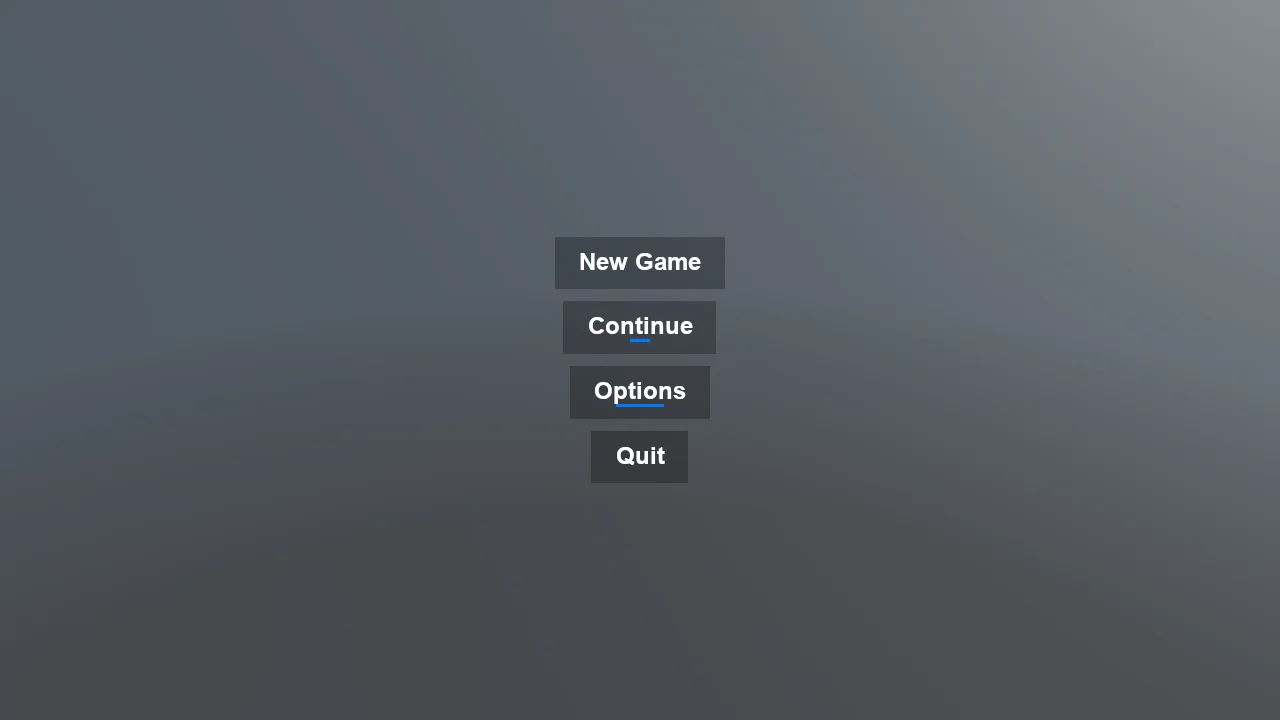
A main menu built from code whose buttons grow a blue underline while the pointer is over them. Two things make a hover effect work in Stride's UI, and both are easy to miss. A Button reports nothing in MouseOverState until RequiresMouseOverUpdate is set on it, which is off by default because tracking it costs a hit test per element per frame - forgetting it is the usual reason a hand-written hover effect does nothing at all. And the animation is a lerp toward a target width rather than a fixed step per frame, so it settles in the same time whatever the frame rate and reverses smoothly when the pointer leaves mid-animation.
The Program.cs file shows how to:
- Reacting to the pointer with RequiresMouseOverUpdate and MouseOverState
- Animating a UI element from a SyncScript
- Frame-rate independent movement with a clamped lerp
- Laying an underline out inside the button so nothing resizes
- Driving many UI elements from a single script
- Using helpers: SetupBase3D, AddSkybox
View on GitHub.
using E04_StrideUI_ButtonHoverAnimation;
using Stride.CommunityToolkit.Engine;
using Stride.CommunityToolkit.Skyboxes;
using Stride.Core.Mathematics;
using Stride.Engine;
using Stride.Graphics;
using Stride.Rendering;
using Stride.UI;
using Stride.UI.Controls;
using Stride.UI.Panels;

// A main menu whose buttons grow an underline when the pointer is over them. The menu itself is a
// plain Stride UI tree built from code; all the movement lives in ButtonHoverAnimation.cs, a
// SyncScript that lerps each underline's width every frame.
//
// The underline sits inside the button, under the label, as the second child of a vertical StackPanel.
// That is the detail worth copying: because the underline is a normal child of the layout it never
// overlaps anything, and because it keeps its 3px row whatever its width, the button does not resize
// as the underline appears.

const int MenuButtonTextSize = 24;

var underlineColour = new Color(0, 120, 255, 255);

using var game = new Game();

game.Run(start: Start);

void Start(Scene scene)
{
    // SetupBase3D, not SetupBase3DScene: this is the compositor, camera and light, and crucially the
    // UI stage that draws RenderGroup.Group31. SetupBase3DScene would also add a ground plane and a
    // physics simulation, and a menu has no use for either.
    game.SetupBase3D();
    game.AddSkybox();

    // Text draws nothing without a font, and this one ships with the engine, so the example needs no
    // assets of its own.
    var font = game.Content.Load<SpriteFont>("/Stride.Engine/StrideDefaultFont");

    var animation = new ButtonHoverAnimation();

    var menu = new StackPanel
    {
        Orientation = Orientation.Vertical,
        HorizontalAlignment = HorizontalAlignment.Center,
        VerticalAlignment = VerticalAlignment.Center
    };

    menu.Children.Add(CreateMenuButton("New Game"));
    menu.Children.Add(CreateMenuButton("Continue"));
    menu.Children.Add(CreateMenuButton("Options"));

    var quit = CreateMenuButton("Quit");
    quit.Click += (_, _) => game.Exit();
    menu.Children.Add(quit);

    // A UI is an entity like any other. The script goes on the same entity as the UIComponent, so one
    // script drives the whole menu.
    scene.Entities.Add(new Entity("Menu")
    {
        new UIComponent
        {
            Page = new UIPage { RootElement = menu },
            RenderGroup = RenderGroup.Group31
        },
        animation
    });

    Button CreateMenuButton(string label)
    {
        var text = new TextBlock
        {
            Text = label,
            Font = font,
            TextSize = MenuButtonTextSize,
            TextColor = Color.White,
            TextAlignment = TextAlignment.Center,
            HorizontalAlignment = HorizontalAlignment.Center
        };

        // Starts collapsed to nothing; the script opens it out on hover. Height is fixed so the row it
        // occupies never changes and the button keeps its size.
        var underline = new Border
        {
            BackgroundColor = underlineColour,
            Height = 3,
            Width = 0,
            HorizontalAlignment = HorizontalAlignment.Center
        };

        var content = new StackPanel { Orientation = Orientation.Vertical };
        content.Children.Add(text);
        content.Children.Add(underline);

        var button = new Button
        {
            Content = content,
            BackgroundColor = new Color(0, 0, 0, 120),
            Margin = new Thickness(0, 6, 0, 6),
            Padding = new Thickness(24, 10, 24, 12),
            HorizontalAlignment = HorizontalAlignment.Center
        };

        animation.Track(button, underline);

        return button;
    }
}