Stride UI - Draggable Window - Bullet Physics
The draggable window example running on the legacy Bullet physics engine. The UI code is unchanged - only the spheres the windows spawn are simulated differently. Useful as a direct comparison if you are maintaining a project that has not moved to Bepu yet.
The Program.cs file shows how to:
- Running the draggable window scene on the legacy Bullet engine
- Switching engine by namespace: Stride.CommunityToolkit.Bullet in place of .Bepu
- Why the UI layer is unaffected by the physics engine underneath
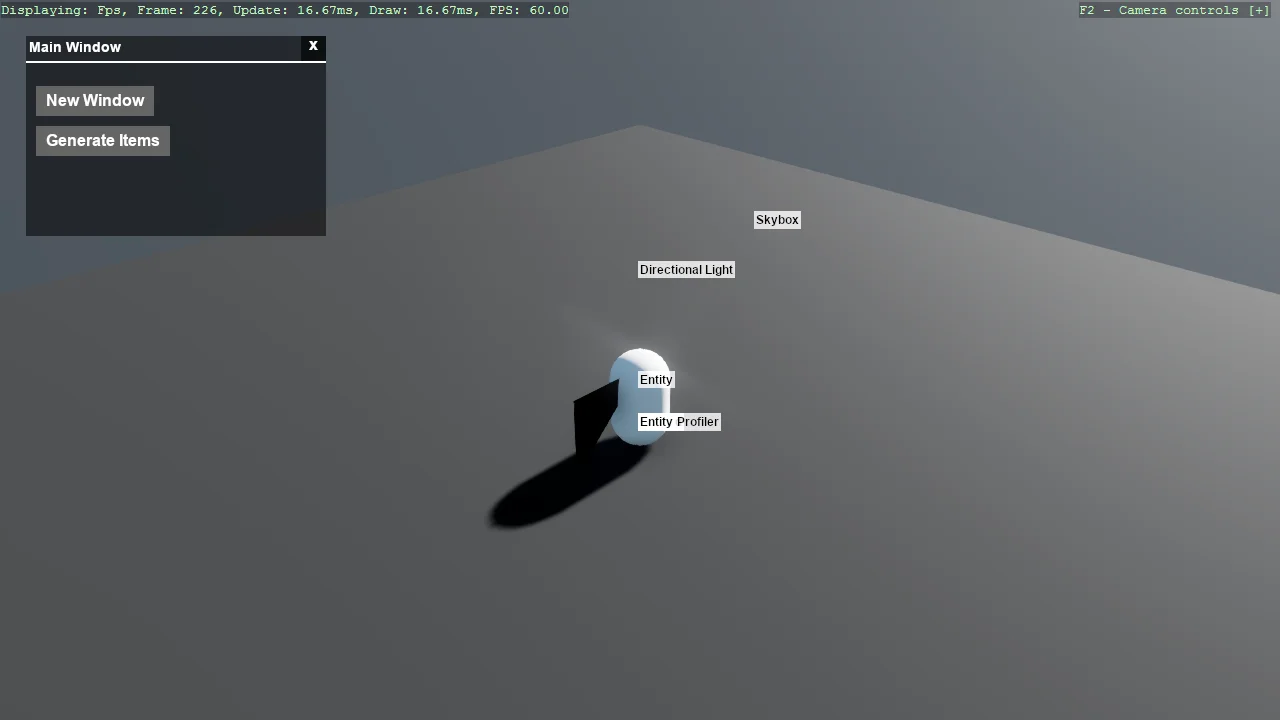
View on GitHub.
using E04_StrideUI_DragAndDrop;
using Stride.CommunityToolkit.Bullet;
using Stride.CommunityToolkit.Engine;
using Stride.CommunityToolkit.Renderers;
using Stride.CommunityToolkit.Rendering.ProceduralModels;
using Stride.CommunityToolkit.Skyboxes;
using Stride.Core.Mathematics;
using Stride.Engine;
using Stride.Games;
using Stride.Graphics;
using Stride.Rendering;

UIManager? _uiManager = null;
PrimitiveGenerator? _shapeGenerator = null;

const int ShapeCount = 100;
const int RemovalThresholdY = -30;
const string TotalCubes = "Total Shapes: ";

using var game = new Game();

game.Run(start: Start, update: Update);

void Start(Scene scene)
{
    // Setup the base 3D scene with default lighting, camera, etc.
    game.SetupBase3DScene();

    // Add debugging aids: entity names, positions
    game.AddEntityDebugSceneRenderer(new()
    {
        EnableBackground = true
    });

    game.AddSkybox();
    game.AddProfiler();

    _shapeGenerator = new PrimitiveGenerator(game, scene);

    var font = game.Content.Load<SpriteFont>("/Stride.Engine/StrideDefaultFont");

    // Create and display the UI components on screen
    CreateAndAddUI(scene, font);

    // Add an example 3D capsule entity to the scene for visual reference
    AddExampleShape(scene);

    MoveToAnotherProjectOrSnippetExample(scene, game);
}

void Update(Scene scene, GameTime time)
{
    foreach (var entity in scene.Entities)
    {
        if (entity.Transform.Position.Y < RemovalThresholdY)
        {
            entity.Scene = null;

            _shapeGenerator?.SubtractTotalCubes(1);

            _uiManager?.UpdateTextBlock($"{TotalCubes} {_shapeGenerator?.TotalShapes ?? 0}");
        }
    }
}

void CreateAndAddUI(Scene scene, SpriteFont font)
{
    _uiManager = new UIManager(font, GenerateRandomSpheres);

    _uiManager.Entity.Scene = scene;
}

void AddExampleShape(Scene scene)
{
    var entity = game.Create3DPrimitive(PrimitiveModelType.Capsule);

    entity.Transform.Position = new Vector3(0, 8, 0);

    entity.Scene = scene;
}

void GenerateRandomSpheres()
{
    var totalShapes = _shapeGenerator?.Generate(ShapeCount, PrimitiveModelType.Sphere);

    _uiManager?.UpdateTextBlock($"{TotalCubes} {totalShapes ?? 0}");
}

static void MoveToAnotherProjectOrSnippetExample(Scene scene, Game game)
{
    var vertices = new VertexPositionTexture[4];
    vertices[0].Position = new Vector3(0f, 0f, 1f);
    vertices[1].Position = new Vector3(0f, 1f, 0f);
    vertices[2].Position = new Vector3(0f, 1f, 1f);
    //vertices[3].Position = new Vector3(1f, 0f, 1f);
    var vertexBuffer = Stride.Graphics.Buffer.Vertex.New(game.GraphicsDevice, vertices,
                                                         GraphicsResourceUsage.Dynamic);
    int[] indices = { 0, 2, 1 };
    var indexBuffer = Stride.Graphics.Buffer.Index.New(game.GraphicsDevice, indices);

    var customMesh = new Mesh
    {
        Draw = new MeshDraw
        {
            /* Vertex buffer and index buffer setup */
            PrimitiveType = PrimitiveType.TriangleList,
            DrawCount = indices.Length,
            IndexBuffer = new IndexBufferBinding(indexBuffer, true, indices.Length),
            VertexBuffers = new[] { new VertexBufferBinding(vertexBuffer,
                                  VertexPositionTexture.Layout, vertexBuffer.ElementCount) },
        }
    };

    var entity = new Entity();

    var model = new Model();

    model.Meshes.Add(customMesh);

    model.Materials.Add(game.CreateMaterial());

    entity.Components.Add(new ModelComponent(model));

    entity.Scene = scene;
}