Reference Grid
ReferenceGrid draws a grid with numbered lines over a scene, so you can see where things are. It shows
one of two coordinate spaces: the world, where models and physics bodies are placed, or the screen, where
a ShapeBatch draws with Screen on. It is in the Stride.CommunityToolkit.Shapes
package.
var grid = game.AddGrid();
Call it from the Start callback, after the graphics compositor and a camera exist. The grid follows the first camera of the compositor.
The two spaces
| World | Screen | |
|---|---|---|
| Origin | The world's origin | The top left corner of the window |
| Unit | World units | The pixels code draws in. On a scaled display one of them is more than one pixel of the monitor |
| Y points | Up | Down |
| Used by | Entities, models, physics bodies, a ShapeBatch in the world |
A ShapeBatch with Screen on, screen-space text |
In a base 2D scene the camera looks at the world's origin, so world (0, 0) is in the middle of the
window until the camera moves.
World, 2D scene
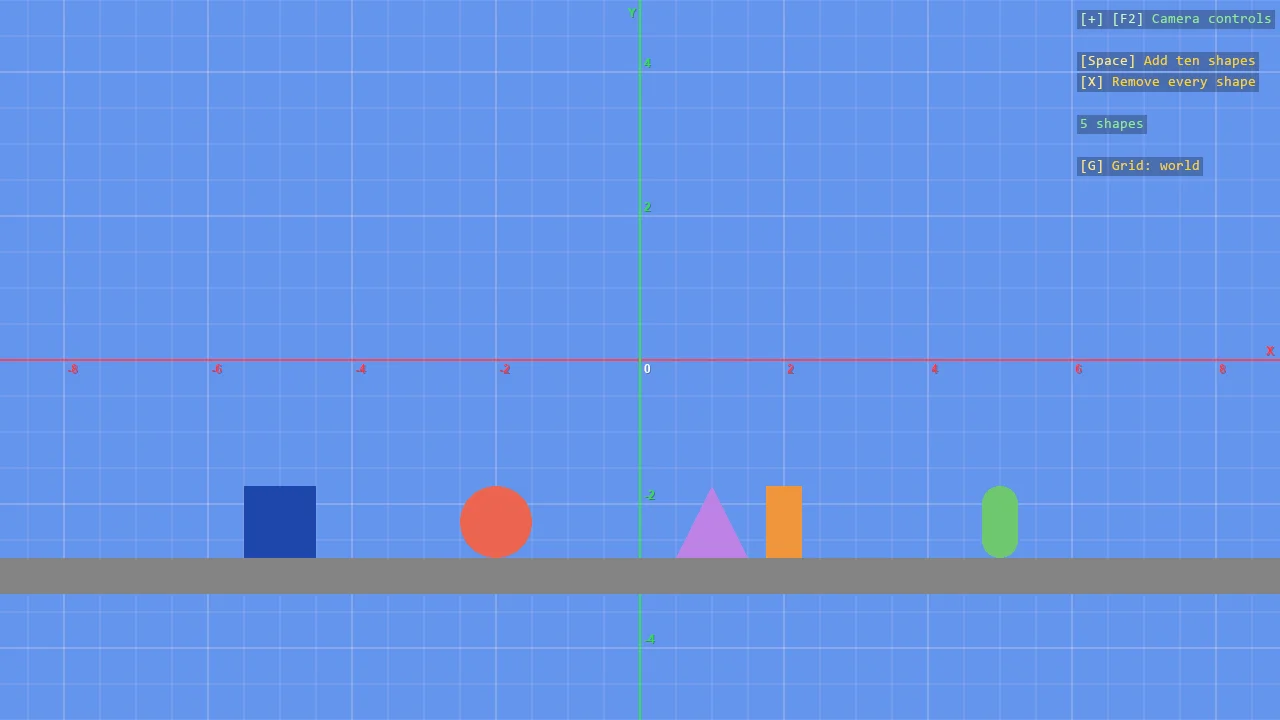
Under an orthographic camera the grid lies in the XY plane and covers what the camera sees. Flat shapes at Z = 0 hide the lines behind them.
World, 3D scene
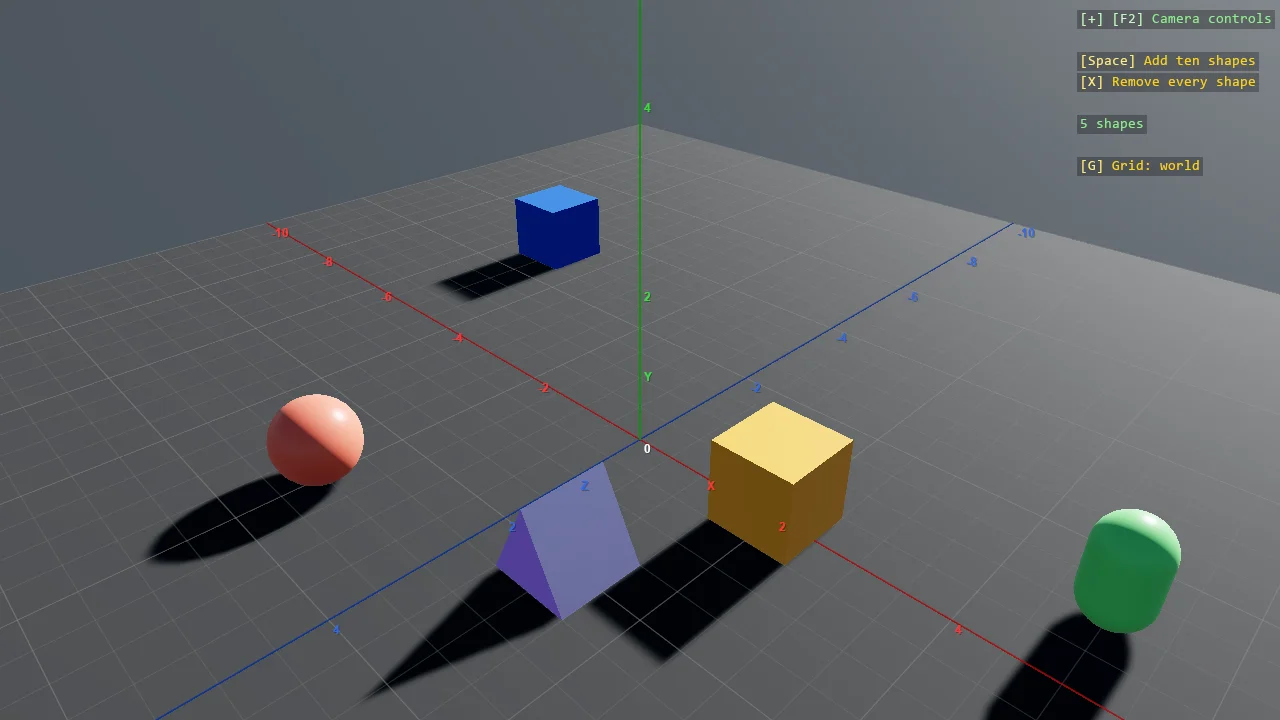
Under a perspective camera the grid lies on the ground plane XZ and covers a square around the origin, with a short Y axis in the middle. Scene geometry hides the lines behind it.
Screen
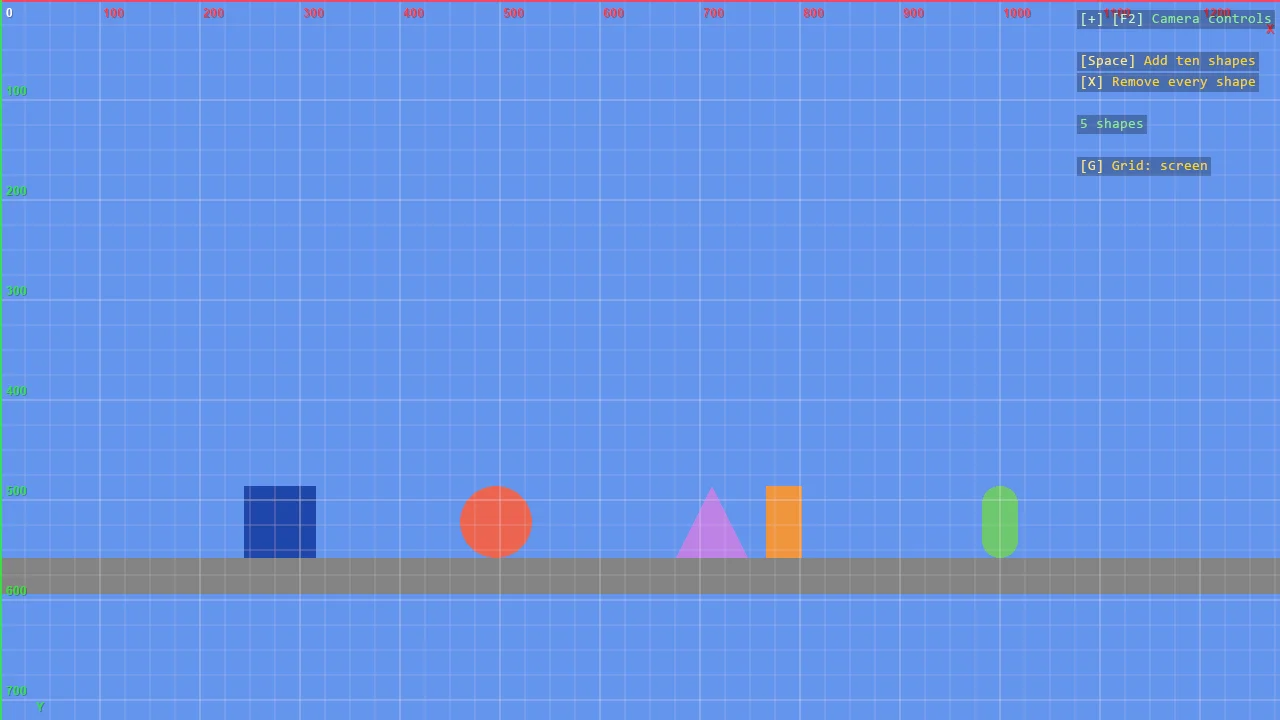
The screen grid counts pixels from the top left corner and is drawn over everything. Its unit is the one
ShapeBatch and screen-space text use, which follows the display scale: on a 150% display, 100 on the grid is
150 pixels of the monitor. The overlay line then reads [G] Grid: screen, 1 = 1.5 px.
Note
The grid can only know the display scale in a DPI-aware process. Call WindowsDpiManager.EnablePerMonitorV2()
before creating the game, as the examples do. Without it Windows stretches the whole window and the
program is told the scale is 100%.
Switch the grid
By default G steps through off, world and screen, and the debug overlay shows the current state. The same can be done from code.
var grid = game.AddGrid(GridSpace.Screen, toggleKey: Keys.None);

grid.Cycle();                     // to the next state
grid.Visible = false;             // or set the state directly
grid.Space = GridSpace.World;
| Member | Description |
|---|---|
Visible |
Whether the grid is drawn |
Space |
GridSpace.World or GridSpace.Screen |
Cycle() |
Steps from hidden to world, from world to screen, from screen to hidden |
ToggleKey |
The key that calls Cycle(). Keys.None for no key. Defaults to Keys.G |
What it draws
- Minor and major lines. The major lines are numbered.
- The axes through the origin, in Game Studio's colours: X red, Y green, Z blue, with a letter each.
- The coordinates under the mouse, in both spaces, written beside the mouse.
| Property | Default | Description |
|---|---|---|
ShowNumbers |
true |
Numbers on the major lines and letters on the axes |
ShowCursor |
true |
The coordinates under the mouse |
Plane |
Auto |
The plane of the world grid. Auto takes XY under an orthographic camera and XZ under a perspective one |
MajorStep |
0 | The distance between major lines in world units. 0 chooses it from the zoom |
MinorDivisions |
0 | Minor steps in a major step. 0 chooses 4 or 5 so that the minor lines fall on round numbers |
Extent |
20 | The side of the square the grid covers on the ground plane |
ScreenStep |
100 | The distance between major lines in screen space, in pixels |
ScreenMinorDivisions |
4 | Minor steps in a major step in screen space |
LineColor |
White | The colour of the lines that are not axes |
MinorOpacity, MajorOpacity |
0.1, 0.25 | The opacity of the minor and the major lines |
FontSize |
12 | The size of the numbers, in pixels on a 100% display |
Remarks:
- With
MajorStepat 0, the step follows the zoom in jumps of 1, 2 and 5, so that major lines stay about a hundred pixels apart. - In a 2D scene, when the camera is moved away from the origin, the numbers stay along the edge of the window nearest to their axis.
- On the ground plane the grid does not extend beyond
Extent. - The grid draws with two batches of its own. It does not become the batch that
ShapeComponentdraws through, and it does not change the state of any batch you created. - The screen grid draws over the shapes of your own batches, whenever those were added. A panel drawn after the post effects has the grid's lines across it.