Build a simple HUD with ShapeBatch
Level: Beginner
In this tutorial you draw a HUD over a running game, one piece at a time: a panel, a health bar, an
energy dial, a crosshair, labels, a warning panel and a damage flash. Each step adds a few lines and
one idea. The last step moves the finished HUD out of Program.cs into files of its own.
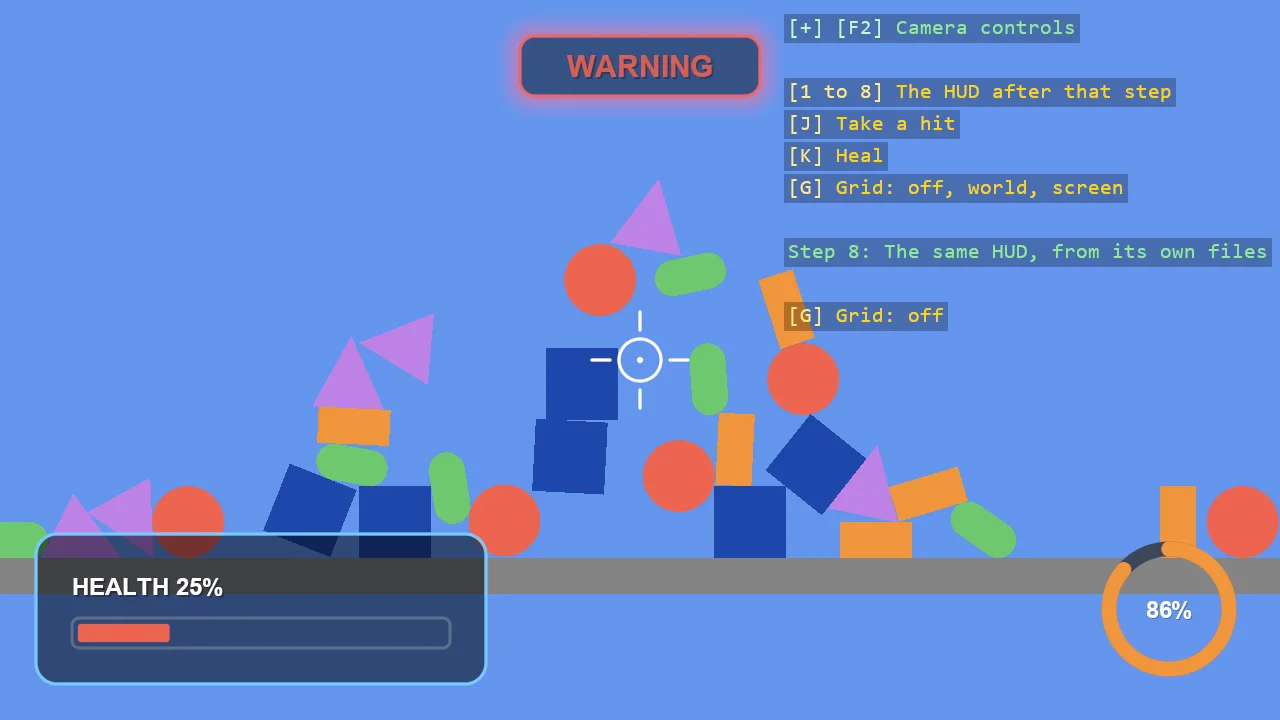
You will learn how to:
- Draw shapes on the screen, in pixels, anchored to a corner of the window.
- Control a shape's outline and fill.
- Redraw a shape from a value every frame, so it always shows the current state of the game.
- Draw arcs, rings and lines.
- Add text beside shapes.
- Use glow and opacity.
- Layer shapes by the order in which you draw them.
- Organise a HUD as a class.
This is the first part. It only draws. A later part turns it into a small game.
The finished program is the example HUD Basics (Step by Step). You do not need it to follow the steps, but it is there if you want to compare.
Before you start
Follow Create Project to create a console project with the toolkit.
Add the shapes package:
dotnet add package Stride.CommunityToolkit.Shapes --prereleaseReplace the code in
Program.cswith the program of Basic 2D Scene (Falling Shapes). A HUD sits over a game, and these thirty falling shapes are the game:using Stride.CommunityToolkit.Bepu; using Stride.CommunityToolkit.Engine; using Stride.CommunityToolkit.Rendering.ProceduralModels; using Stride.Core.Mathematics; using Stride.Engine; const int ShapeCount = 30; // The shapes to drop, and the colour of each (Primitive2D Type, Color Colour)[] shapes = [ (Primitive2D.Square(), new Color(30, 70, 170)), (Primitive2D.Rectangle(), new Color(240, 150, 60)), (Primitive2D.Circle(), new Color(235, 100, 80)), (Primitive2D.Capsule(), new Color(110, 200, 110)), (Primitive2D.Triangle(), new Color(190, 130, 230)), ]; using var game = new Game(); game.Run(new SceneSetup2D().UseBepu(), start: Start); void Start(Scene rootScene) { // Left mouse grabs any body, drags it and throws it on release game.AddGrabber(); for (var i = 0; i < ShapeCount; i++) { // Each kind of shape in turn var (type, colour) = shapes[i % shapes.Length]; var entity = game.CreatePrimitive(type, new() { Material = game.CreateFlatMaterial(colour) }); // One above the other, each a little to one side, so the column topples into a pile entity.Transform.Position = new Vector3(0.1f * (i % 3 - 1), 8 + i * 1.5f, 0); entity.Scene = rootScene; } }Run it. The shapes fall into a pile.
The program has a Start function, which runs once and builds the scene. The HUD needs a second
function, Update, which runs every frame. You add it in step 1.
Step 1: A panel in a corner
Prepare the program
Add this line at the very top of Program.cs, below the using lines:
WindowsDpiManager.EnablePerMonitorV2();
It tells Windows that the game draws for the display's real pixels. Without it, on a display scaled
to 150%, Windows stretches the whole window and the HUD's edges turn blurry. WindowsDpiManager is in
Stride.CommunityToolkit.Engine, which the program already imports.
ShapeBatch draws shapes: rectangles, discs, rings, arcs and lines. Add a variable for it at the
top of the file, above using var game = new Game();. The program already has an array called
shapes, so call it shapeBatch:
ShapeBatch shapeBatch = null!;
It needs using Stride.CommunityToolkit.Shapes;. The null! says that the value is set later, in
Start. Add two lines at the top of Start:
// After the post effects, so that the HUD's colours are drawn as written
shapeBatch = game.AddShapeBatch(afterPostEffects: true);
// A grid with numbered lines. G switches it between world units and screen pixels
game.AddGrid();
The panel needs a few values. Put them at the top of the file, next to shapeBatch:
// Sizes are in pixels on a 100% display
const float Margin = 24f;

var panelSize = new Vector2(300f, 100f);
var panelFill = new Color(12, 18, 32);
var panelEdge = new Color(120, 200, 255);
Draw a rectangle
A HUD is drawn every frame, so the drawing goes in an Update function. Tell game.Run about it:
game.Run(new SceneSetup2D().UseBepu(), start: Start, update: Update);
Then add the function at the end of the file. It needs using Stride.Games;.
void Update(Scene scene, GameTime time)
{
    shapeBatch.DrawRectangle(Vector2.Zero, panelSize, panelEdge);
}
Run it. The whole window turns light blue. The rectangle is there, but in the world: 300 by 100 world units, centred on the world's origin, while the camera sees about 10 units from top to bottom. You are looking at the inside of it. Zoom out with the mouse wheel to find its edges.
A HUD belongs on the screen, not in the world. Change Update to:
void Update(Scene scene, GameTime time)
{
    shapeBatch.Screen = true;
    shapeBatch.DrawRectangle(Vector2.Zero, panelSize, panelEdge);
    shapeBatch.Screen = false;
}
Run it again. Now the rectangle is 300 by 100 pixels, but only one quarter of it shows, in the top left corner. Press G to switch the grid to screen pixels: (0, 0) is the top left corner, and the rectangle's centre is there.
Move it into the corner
A rectangle is placed by its centre. To put it in the bottom left corner, start from that corner and move the centre right by half the width and up by half the height. Then add a margin, so the panel does not touch the edges:
void Update(Scene scene, GameTime time)
{
    // Move the rectangle half its width to the right
    var panelX = panelSize.X * 0.5f;

    // Move it half its height up, because the corner it starts from is at the bottom
    var panelY = -panelSize.Y * 0.5f;

    // Start from the bottom left corner, and keep a margin from the window's edges
    var panelCentre = shapeBatch.Anchor(ScreenAnchor.BottomLeft) + new Vector2(panelX, panelY) + new Vector2(Margin, -Margin);

    shapeBatch.Screen = true;
    shapeBatch.DrawRectangle(panelCentre, panelSize, panelEdge);
    shapeBatch.Screen = false;
}
On the screen, Y points down, so "up" is a minus.
Give it a fill and round corners
So far the rectangle is solid light blue. A panel is a dark inside with a light edge:
    shapeBatch.Screen = true;
    shapeBatch.BorderWidth = 2f;
    shapeBatch.Fill.Set(panelFill, 0.8f);
    shapeBatch.DrawRectangle(panelCentre, panelSize, panelEdge, cornerRadius: 14f);
    shapeBatch.Screen = false;
Tidy up
The next steps place things relative to the panel, so its centre gets a function of its own, and
the drawing gets one too. Move them out of Update:
void DrawPanel()
{
    shapeBatch.BorderWidth = 2f;
    shapeBatch.Fill.Set(panelFill, 0.8f);
    shapeBatch.DrawRectangle(PanelCentre(), panelSize, panelEdge, cornerRadius: 14f);
}

Vector2 PanelCentre()
{
    // Move the rectangle half its width to the right
    var panelX = panelSize.X * 0.5f;

    // Move it half its height up, because the corner it starts from is at the bottom
    var panelY = -panelSize.Y * 0.5f;

    // Start from the bottom left corner, and keep a margin from the window's edges
    return shapeBatch.Anchor(ScreenAnchor.BottomLeft) + new Vector2(panelX, panelY) + new Vector2(Margin, -Margin);
}
Update keeps only the two Screen lines and the call:
void Update(Scene scene, GameTime time)
{
    shapeBatch.Screen = true;

    DrawPanel();

    shapeBatch.Screen = false;
}
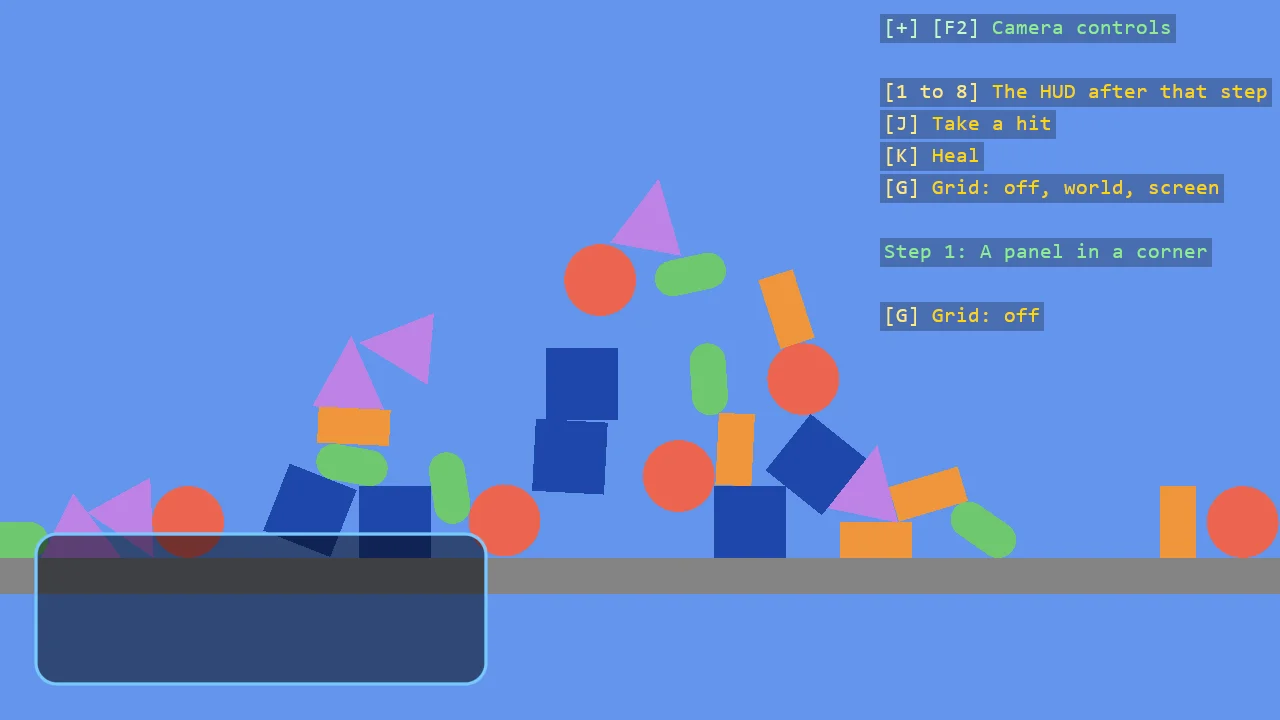
What to notice:
- Pixels. With
Screenset totrue, positions and sizes are window pixels. The origin is the top left corner and Y points down, which is why the panel's offset from the bottom corner has a minus. Screenstays set. It is a setting of the batch, not of one draw call. Everything drawn while it istrueis in pixels, which is whyUpdatesets it back tofalseat the end.- A corner and an offset.
Anchor(ScreenAnchor.BottomLeft)is asked for every frame, so the panel stays in its corner when the window is resized. Try it. - Outline and fill. Every shape is an outline and a fill. The outline takes the colour you pass
to the draw call.
BorderWidthsets how wide it is, andFillsets what is inside: here a colour of its own, at 80% so the scene shows through. Left at its default, the fill is the outline's colour at full strength, which draws a solid shape. - After the post effects.
afterPostEffects: truedraws the batch after the scene has been tone mapped, so the colours you write are the colours you get.
More: Create a batch and draw, Draw on the screen, Draw after post effects, Reference Grid.
Step 2: A health bar
The bar is two rectangles: a track that is an outline, and a bar inside it whose width is the health.
Add the values at the top of the file:
const float LowHealth = 0.3f;

var barSize = new Vector2(252f, 20f);
var trackEdge = new Color(90, 110, 140);
var healthy = new Color(110, 200, 110);
var hurt = new Color(235, 100, 80);

var health = 0.7f;
Add two keys at the top of Update, so there is a health to watch change. They need
using Stride.Input;.
if (game.Input.IsKeyPressed(Keys.K)) health = 1f;
if (game.Input.IsKeyPressed(Keys.J)) health = MathF.Max(health - 0.15f, 0f);
A HUD is mostly made of two kinds of shape: outlines with nothing inside, and solid shapes with no
outline. The bar uses both, and so do the dial and the crosshair later. Each kind is a
BorderWidth and a Fill, so give each its own small function.
Outline sets an outline of 2 pixels and an empty inside:
/// <summary>The state for an outline with nothing inside it.</summary>
void Outline(float width = 2f)
{
    shapeBatch.BorderWidth = width;
    shapeBatch.Fill.Set(null, 0f);
}
Solid sets no outline and fills the shape with the colour of its draw call:
/// <summary>The state for a shape with no outline, filled with the colour of its draw call.</summary>
void Solid()
{
    shapeBatch.BorderWidth = 0f;
    shapeBatch.Fill.Set(null, 1f);
}
Then the bar. The track is drawn after Outline(), the bar after Solid():
void DrawHealthBar()
{
    // The left end of the bar, in the lower half of the panel
    var left = PanelCentre() + new Vector2(-barSize.X * 0.5f, 16f);

    // The track
    Outline();
    shapeBatch.DrawRectangle(left + new Vector2(barSize.X * 0.5f, 0f), barSize, trackEdge, cornerRadius: 5f);

    // The bar: as wide as the health says, a little inside the track, red when the health is low
    var colour = health > LowHealth ? healthy : hurt;
    var size = new Vector2((barSize.X - 8f) * health, barSize.Y - 8f);

    Solid();
    shapeBatch.DrawRectangle(left + new Vector2(4f + size.X * 0.5f, 0f), size, colour, cornerRadius: 2f);
}
Add DrawHealthBar(); after DrawPanel();.
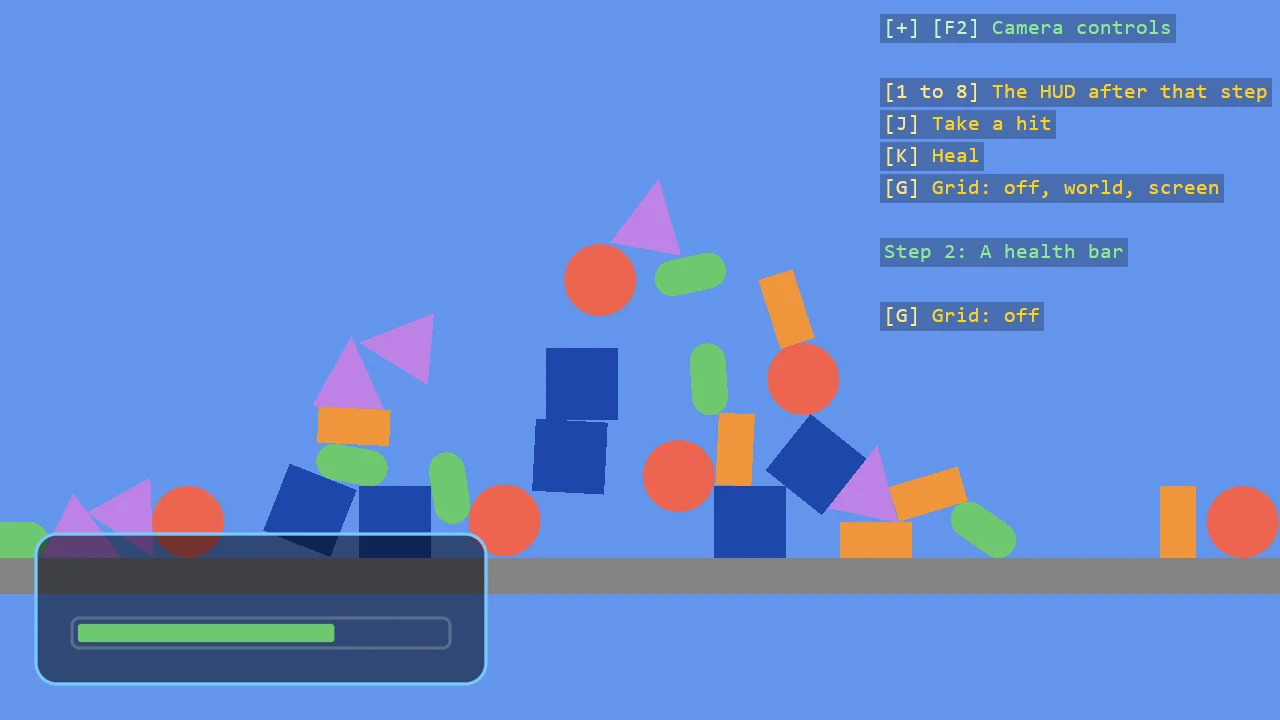
What to notice:
- Nothing is stored. The batch keeps no shapes between frames. Every frame you draw the bar again, as wide as the health is at that moment. That is why there is no code to "update" the bar: press J and K and it follows.
- The state is set before the draw call.
BorderWidthandFillare settings of the batch. A draw call takes them as they are at that moment.Outline()andSolid()are just names for the two settings used most. Fill.Set(null, ...). A fill colour ofnullmeans "the colour of the draw call". The second value is the strength: 0 leaves the shape empty, 1 fills it.
More: How it works, Outline and fill.
Step 3: An energy dial
A second value, shown as a ring that fills clockwise, in the opposite corner.
Add these values at the top of the file:
const float DialRadius = 40f;
const float DialWidth = 10f;

var dialTrack = new Color(60, 70, 90);
var energyColour = new Color(240, 150, 60);

var energy = 0.5f;
The game has no energy yet, so Update makes one that moves by itself. Add this right below the
keys:
var seconds = (float)time.Total.TotalSeconds;

// Something that moves by itself, so the dial has a value to follow
energy = 0.5f + 0.4f * MathF.Sin(seconds * 0.6f);
The dial is two arcs: the whole circle in a dim colour, and over it the part that is full.
/// <summary>The middle of the dial: a margin in from the bottom right corner of the window.</summary>
Vector2 DialCentre()
    => shapeBatch.Anchor(ScreenAnchor.BottomRight) + new Vector2(-Margin - DialRadius - DialWidth, -Margin - DialRadius - DialWidth);

void DrawEnergyDial()
{
    // An arc is a band with a width, filled like any other shape. Each piece sets the state it
    // needs and does not rely on what the piece before it left behind
    Solid();

    // The whole circle, dim
    shapeBatch.DrawArc(DialCentre(), DialRadius, 0f, MathF.Tau, dialTrack, DialWidth);

    // The part that is full. An angle of zero points right and a positive angle turns clockwise,
    // so this starts at the top and runs round to the right
    shapeBatch.DrawArc(DialCentre(), DialRadius, -MathF.PI * 0.5f, MathF.Tau * energy, energyColour, DialWidth);
}
Add DrawEnergyDial(); after DrawHealthBar();.
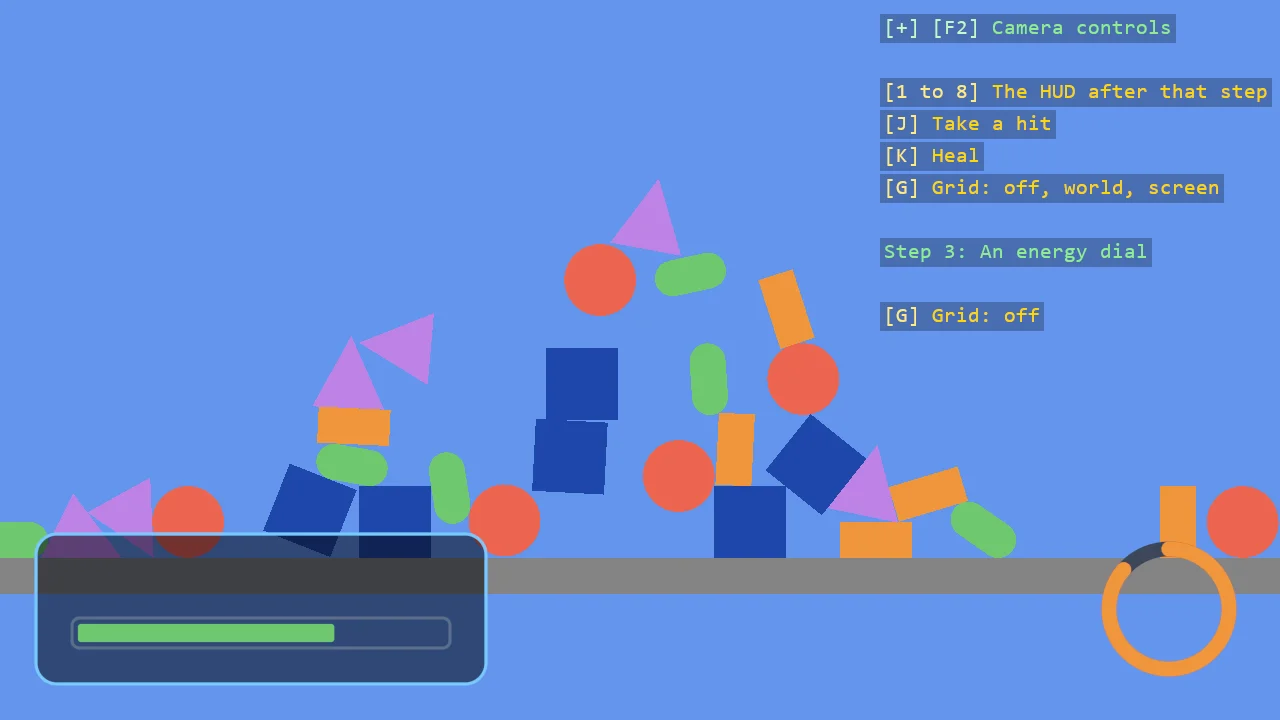
What to notice:
- Angles. An arc takes a start angle and a sweep, in radians. Zero points right and a positive
angle turns clockwise, so
-MathF.PI * 0.5fis the top.MathF.Tauis a full turn. - An arc is a band. Its last argument is the band's width. The band is filled like any other
shape, which is why the function starts with
Solid(). - Set what you need. The state stays as the last piece left it. Here the bar happened to leave
Solid()behind, and the dial would look right without its own call. It would also break the day you draw something else in between. Each piece sets its own state.
More: Draw on the screen.
Step 4: A crosshair
A ring, four ticks and a dot, in the middle of the window.
void DrawCrosshair()
{
    var centre = shapeBatch.ScreenSize * 0.5f;

    Outline();
    shapeBatch.DrawRing(centre, 14f, Color.White);

    // Four ticks around it, each from 20 to 32 pixels out: right, left, down and up
    shapeBatch.DrawPixelLine(centre + new Vector2(20f, 0f), centre + new Vector2(32f, 0f), 2f, Color.White);
    shapeBatch.DrawPixelLine(centre + new Vector2(-20f, 0f), centre + new Vector2(-32f, 0f), 2f, Color.White);
    shapeBatch.DrawPixelLine(centre + new Vector2(0f, 20f), centre + new Vector2(0f, 32f), 2f, Color.White);
    shapeBatch.DrawPixelLine(centre + new Vector2(0f, -20f), centre + new Vector2(0f, -32f), 2f, Color.White);

    Solid();
    shapeBatch.DrawPixelDisc(new Vector3(centre, 0f), 2f, Color.White);
}
Add DrawCrosshair(); after DrawEnergyDial();.
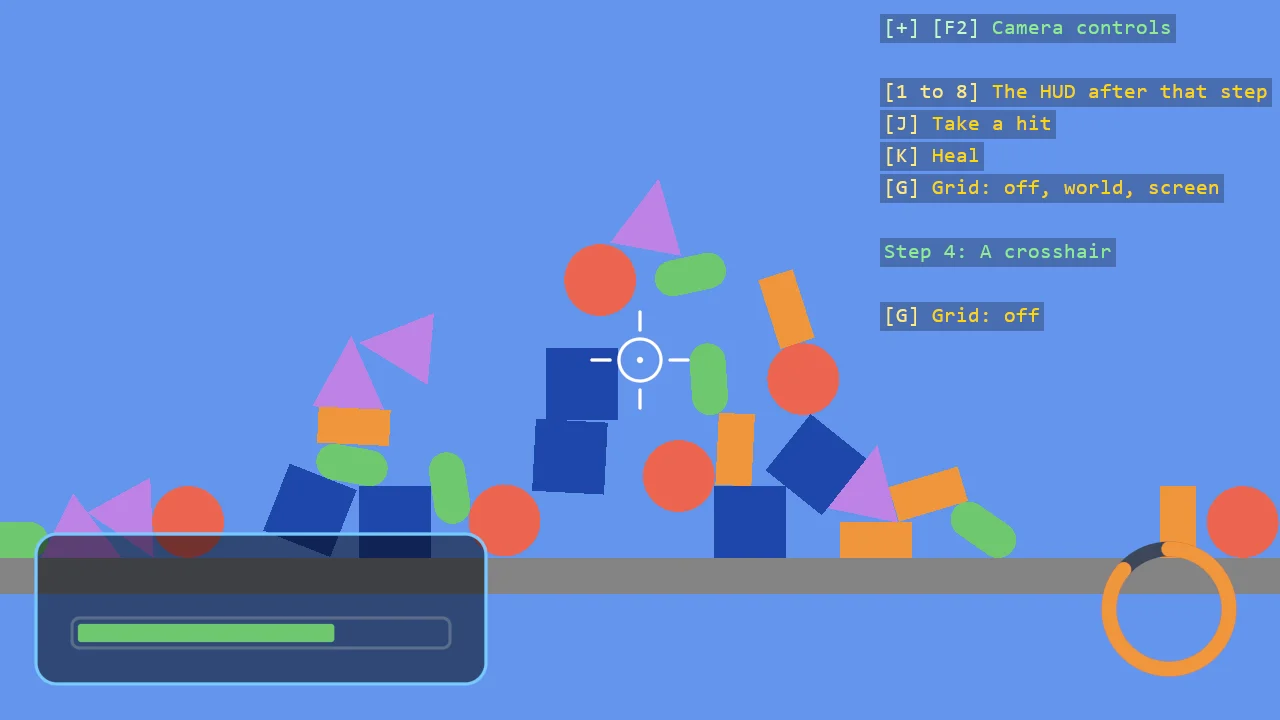
What to notice:
ScreenSize. Half of it is the middle of the window, whatever the window's size.- A ring is the outline of a disc.
Outline()gives it a width of 2 pixels and nothing inside. - Pixel lines.
DrawPixelLinetakes two ends and a width in pixels. - Sharp at any size. The shapes are computed per pixel, not built from triangles, so a 2 pixel ring has a smooth edge.
Step 5: Labels
ShapeBatch does not draw text. Text comes from a component, EntityTextComponent, placed at a
position on the screen. It needs using Stride.CommunityToolkit.Rendering.Text;, and the numbers
below need using System.Globalization;.
Add the two labels at the top of the file, next to shapeBatch:
EntityTextComponent healthLabel = null!;
EntityTextComponent energyLabel = null!;
Register the text renderer and make the labels in Start:
game.AddEntityTextRenderer();

healthLabel = AddLabel(rootScene, TextAnchor.BottomLeft);
energyLabel = AddLabel(rootScene, TextAnchor.MiddleCenter);
AddLabel creates a label, and UpdateLabels writes its text and moves it:
/// <summary>A piece of text on the screen. It is made once and then only moved and rewritten.</summary>
EntityTextComponent AddLabel(Scene scene, TextAnchor anchor)
{
    var label = new EntityTextComponent
    {
        Text = "",
        FontSize = 16,
        Anchor = anchor,
        PositionMode = TextPositionMode.Screen,
        EnableShadow = true,
    };

    scene.Entities.Add(new Entity("HUD label") { label });

    return label;
}

void UpdateLabels()
{
    // The positions are worked out every frame, like the shapes', so they follow a resized window
    healthLabel.Text = string.Create(CultureInfo.InvariantCulture, $"HEALTH {health * 100f:0}%");
    healthLabel.ScreenPosition = PanelCentre() + new Vector2(-barSize.X * 0.5f, -6f);

    energyLabel.Text = string.Create(CultureInfo.InvariantCulture, $"{energy * 100f:0}%");
    energyLabel.ScreenPosition = DialCentre();
}
Add UpdateLabels(); after DrawCrosshair();.
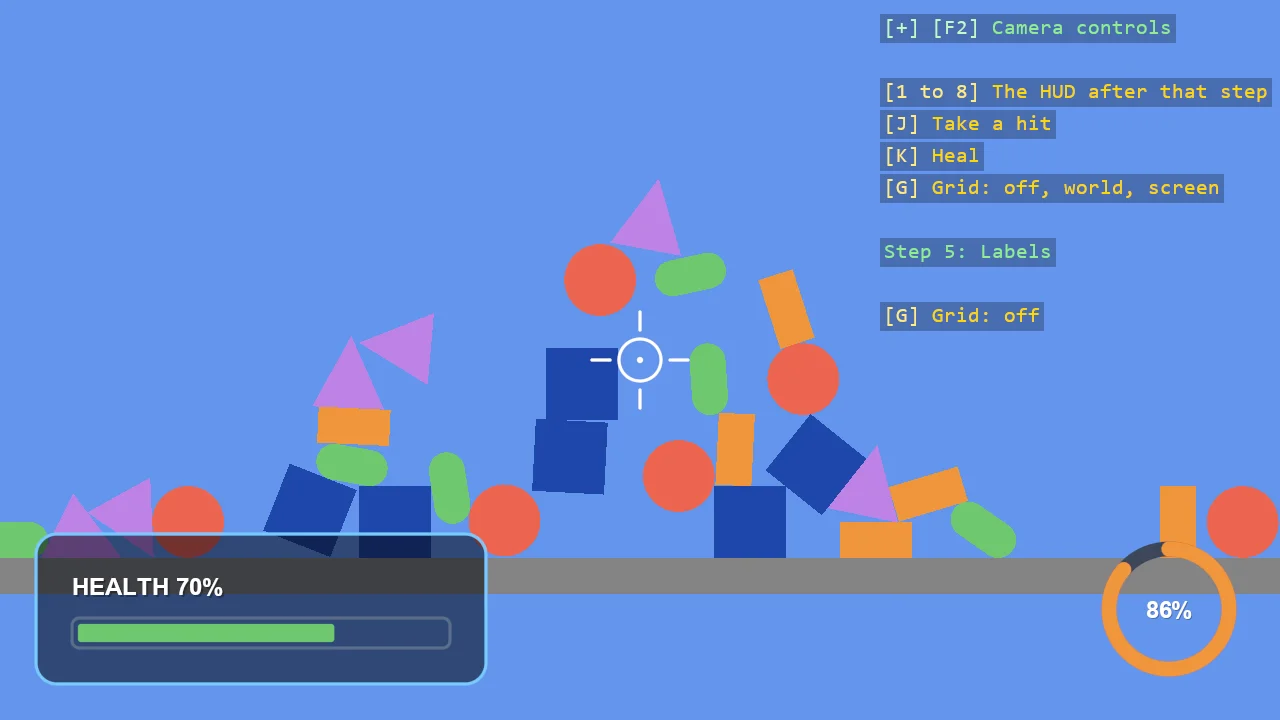
What to notice:
- A label is kept, a shape is not. A shape exists for one frame: stop drawing it and it is gone. A label is an entity in the scene: it stays until you change or remove it. So labels are made once and then only rewritten.
- The same pixels.
ScreenPositionuses the same coordinates as the shapes, so the label is placed fromPanelCentre()like the bar under it. - Anchors.
TextAnchor.BottomLeftputs the position at the text's bottom left corner, so the label sits on a line above the bar.MiddleCentercentres the number in the dial.
More: Text, display scale and components, Entity Text.
Step 6: A warning panel
A second panel at the top of the window, with the word WARNING in red. It appears when the health is low, glows, and pulses.
Add its size at the top of the file, and a third label next to the other two:
var warningSize = new Vector2(160f, 40f);
EntityTextComponent warningLabel = null!;
Make the label in Start, after the other two:
warningLabel = AddLabel(rootScene, TextAnchor.MiddleCenter);
warningLabel.Text = "WARNING";
warningLabel.TextColor = hurt;
warningLabel.FontSize = 20;
Then the drawing:
void DrawWarning(float seconds)
{
    // The label stays on the screen until it is hidden, so it is hidden unless the health is low
    warningLabel.IsVisible = health <= LowHealth;

    if (health > LowHealth) return;

    // At the top of the window, in the middle
    var centre = new Vector2(shapeBatch.ScreenSize.X * 0.5f, Margin + warningSize.Y * 0.5f);

    // Rises and falls twice a second
    var pulse = 0.4f + 0.6f * MathF.Abs(MathF.Sin(seconds * MathF.Tau));

    // A panel like the first one, with a red edge, a soft halo and the pulse as its opacity
    shapeBatch.BorderWidth = 2f;
    shapeBatch.Fill.Set(panelFill, 0.8f);
    shapeBatch.Glow.Set(18f);
    shapeBatch.Glow.Strength = 0.5f;
    shapeBatch.Opacity = pulse;

    shapeBatch.DrawRectangle(centre, warningSize, hurt, cornerRadius: 10f);

    // The state stays as it is set. Put back what the other shapes expect
    shapeBatch.Glow.Clear();
    shapeBatch.Opacity = 1f;

    // The word pulses with the panel
    warningLabel.ScreenPosition = centre;
    warningLabel.Opacity = pulse;
}
Add DrawWarning(seconds); after UpdateLabels();. seconds is the game's total time, from step 3.
Press J until the bar turns red.
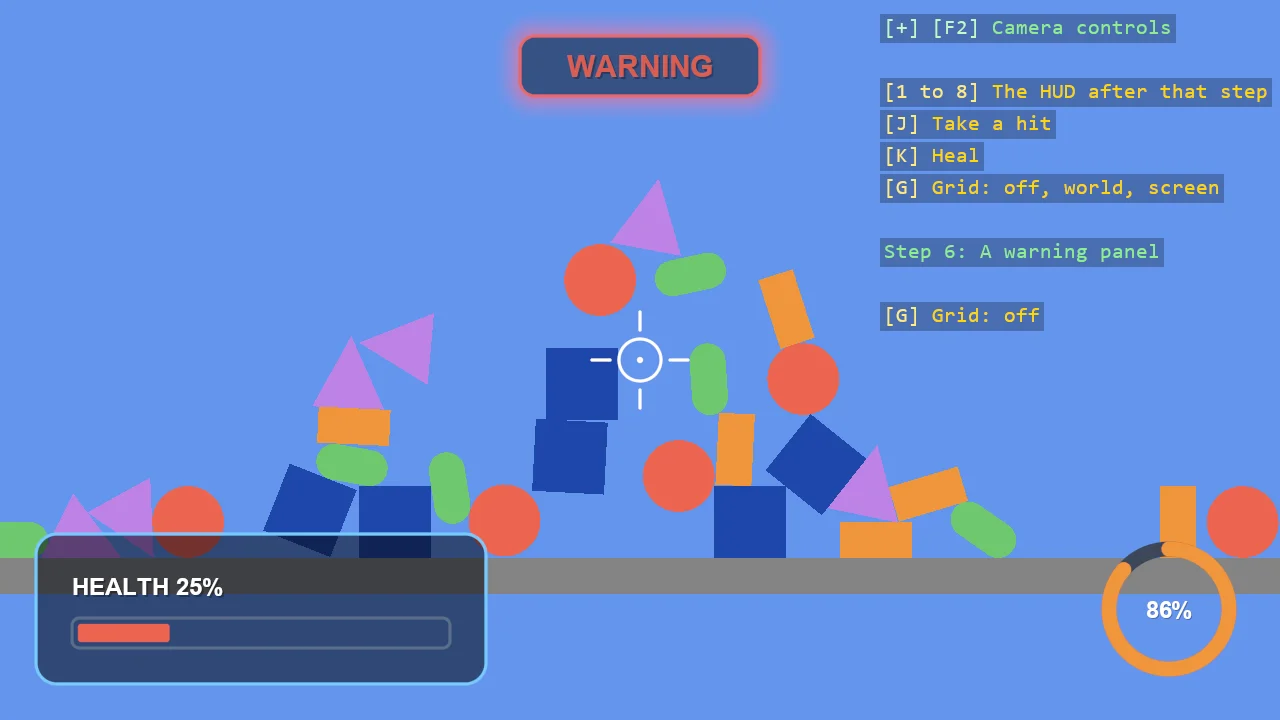
What to notice:
- Glow.
Glow.Set(18f)adds a halo 18 pixels wide outside the shape, in the colour of its outline.Glow.Strengthsets how strong it is. - Opacity.
Opacitymultiplies the transparency of everything a draw call draws: outline, fill and glow. Driving it with a sine of the time makes the panel pulse. The label's ownOpacitypulses with it. - Put the state back. Glow and opacity stay set like every other state. If the function did not
clear them, next frame's panel would glow and pulse too.
Outline()andSolid()do not touch them, so the function that sets them clears them. - Hiding a shape and hiding a label. When the health is fine, the function returns before it draws, and the panel is gone. The label is an entity, so it has to be hidden: that is the first line of the function.
More: Glow.
Step 7: A damage flash
When a hit lands, the whole window flashes red and fades.
Add a value for how strong the flash is:
// How strong the damage flash is, from 1 when a hit lands down to 0
var flash = 0f;
Start it on a hit and fade it, in Update, below the energy:
// A hit starts the flash, and it fades from full to nothing in half a second
if (game.Input.IsKeyPressed(Keys.J)) flash = 1f;

flash = MathF.Max(flash - (float)time.Elapsed.TotalSeconds * 2f, 0f);
Draw it as one rectangle the size of the window:
void DrawDamageFlash()
{
    if (flash <= 0f) return;

    // The whole window, in red, mostly transparent
    Solid();
    shapeBatch.Opacity = flash * 0.35f;

    shapeBatch.DrawRectangle(shapeBatch.ScreenSize * 0.5f, shapeBatch.ScreenSize, hurt);

    shapeBatch.Opacity = 1f;
}
This call does not go at the end. It goes first. The drawing in Update is now:
shapeBatch.Screen = true;

// Shapes are drawn in the order they are submitted, so what comes first lies underneath
DrawDamageFlash();
DrawPanel();
DrawHealthBar();
DrawEnergyDial();
DrawCrosshair();
UpdateLabels();
DrawWarning(seconds);

shapeBatch.Screen = false;
Press J to take a hit.
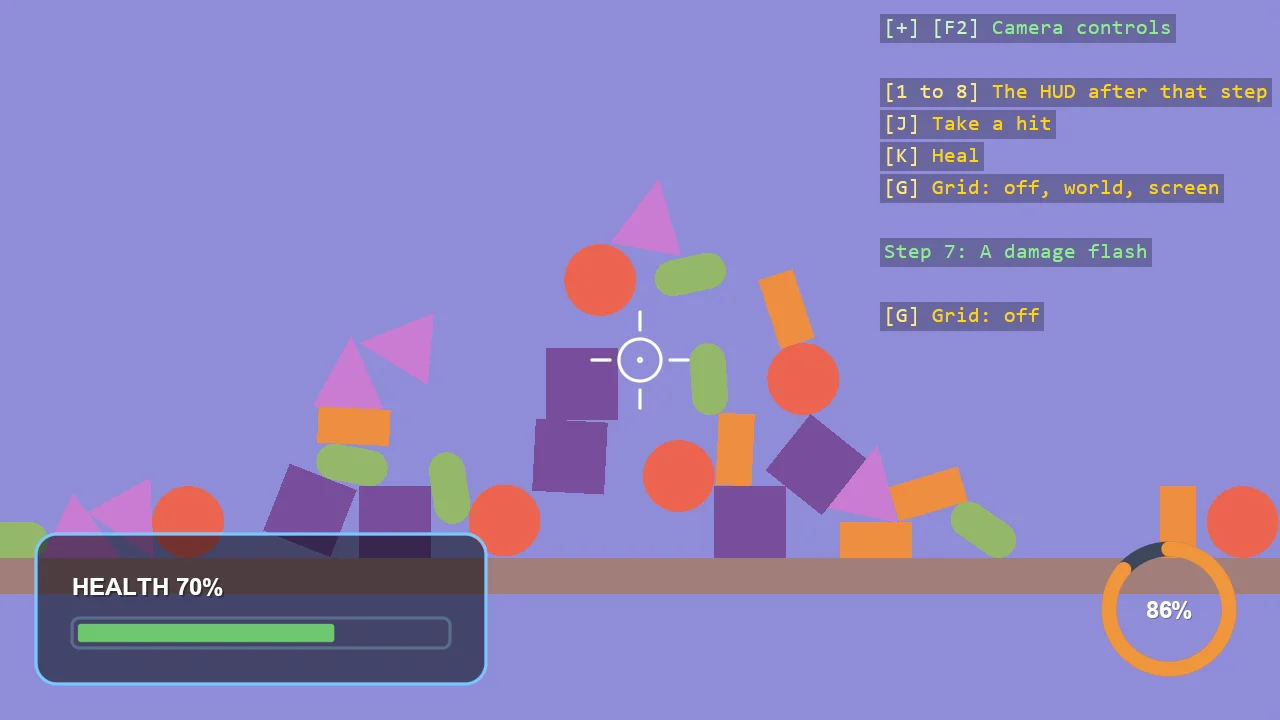
What to notice:
- Order is depth. Shapes are drawn in the order you submit them. The flash is submitted first, so the panels, the dial and the crosshair are drawn over it and stay clear.
- A value that fades. The flash is one number that a hit sets to 1 and time takes back to 0. The drawing only reads it.
Step 8: Move the HUD into its own files
The HUD is finished. Program.cs now holds four things: the values, the keys, the game's numbers
and the drawing. That is fine for learning and awkward for a game, where the HUD should be something
you create and call. This step moves it out. Nothing about the drawing changes.
The values go into a style. The sizes and colours from the top of Program.cs become properties
of one class, HudStyle.cs:
using Stride.Core.Mathematics;

namespace E03_2D_HUD_Basics;

/// <summary>
/// The sizes and colours of the HUD, in one place. Sizes are in pixels on a 100% display.
/// </summary>
/// <remarks>
/// These were loose values at the top of <c>Program.cs</c>. As properties of one object they can be
/// handed to the HUD, and a second HUD can be given another look by passing another style.
/// </remarks>
public sealed class HudStyle
{
    public float Margin { get; init; } = 24f;

    public Vector2 PanelSize { get; init; } = new(300f, 100f);

    public Color PanelFill { get; init; } = new(12, 18, 32);

    public Color PanelEdge { get; init; } = new(120, 200, 255);

    public Vector2 BarSize { get; init; } = new(252f, 20f);

    public Color TrackEdge { get; init; } = new(90, 110, 140);

    public Color Healthy { get; init; } = new(110, 200, 110);

    public Color Hurt { get; init; } = new(235, 100, 80);

    /// <summary>The health at and below which the bar turns red and the warning panel comes on.</summary>
    public float LowHealth { get; init; } = 0.3f;

    public float DialRadius { get; init; } = 40f;

    public float DialWidth { get; init; } = 10f;

    public Color DialTrack { get; init; } = new(60, 70, 90);

    public Color Energy { get; init; } = new(240, 150, 60);

    public Vector2 WarningSize { get; init; } = new(160f, 40f);
}
The drawing goes into a class. SimpleHud.cs takes the batch and a style, keeps the labels, and
offers three numbers to set and one method to call:
public SimpleHud(Game game, Scene scene, ShapeBatch shapeBatch, HudStyle style)
{
    _shapeBatch = shapeBatch;
    _style = style;

    game.AddEntityTextRenderer();

    _healthLabel = AddLabel(scene, TextAnchor.BottomLeft);
    _energyLabel = AddLabel(scene, TextAnchor.MiddleCenter);

    _warningLabel = AddLabel(scene, TextAnchor.MiddleCenter);
    _warningLabel.Text = "WARNING";
    _warningLabel.TextColor = style.Hurt;
    _warningLabel.FontSize = 20;
}

/// <summary>From 0 to 1.</summary>
public float Health { get; set; } = 1f;

/// <summary>From 0 to 1.</summary>
public float Energy { get; set; }

/// <summary>How strong the damage flash is, from 1 when a hit lands down to 0.</summary>
public float Flash { get; set; }

/// <summary>Whether the labels are shown. The shapes need no such switch: not drawing them is enough.</summary>
public bool Visible
{
    set
    {
        _healthLabel.Opacity = _energyLabel.Opacity = value ? 1f : 0f;

        // The warning shows itself when the health is low, and only while the HUD is drawn
        if (!value) _warningLabel.IsVisible = false;
    }
}

/// <summary>Draws the whole HUD. Call it once a frame.</summary>
/// <param name="seconds">The game's total time, which the warning panel pulses by.</param>
public void Draw(float seconds)
{
    _shapeBatch.Screen = true;

    DrawDamageFlash();
    DrawPanel();
    DrawHealthBar();
    DrawEnergyDial();
    DrawCrosshair();
    UpdateLabels();
    DrawWarning(seconds);

    _shapeBatch.Screen = false;
}
The rest of the class is the functions from steps 1 to 7, moved as they are. The only difference is
where values come from: panelSize is now _style.PanelSize, and health is the Health property.
See the whole file in the example.
Program.cs creates it and calls it. In Start:
hud = new SimpleHud(game, rootScene, shapeBatch, new HudStyle());
In Update, in place of the drawing:
hud.Health = health;
hud.Energy = energy;
hud.Flash = flash;
hud.Draw(seconds);
What to notice:
- The HUD does not know about the game. It has no keys and no idea how health is worked out. The game sets three numbers and the HUD shows them. That is what lets you move it to another game.
- A second look is a second style.
new HudStyle { PanelEdge = Color.Orange }gives a HUD with an orange edge, without touching the drawing. - One piece per method. Each part of the HUD is still one small method. A larger HUD goes one step further and gives each part its own class and file, as the full example below does.
The finished program
The example HUD Basics (Step by Step) is the whole program. From a clone of the repository:
dotnet run --project examples/code-only/E03_2D_HUD_Basics
It can show the HUD as it stood after each step: press 1 to 7. Press 8 for the HUD drawn by the class from step 8; the picture is the same as at step 7.
| Key | Action |
|---|---|
| 1 to 8 | Show the HUD as it stands after that step |
| J | Take a hit |
| K | Heal |
| G | Grid: off, world units, screen pixels |
Where next
- ShapeBatch, the reference for everything used here and for what this part left out: dashes, gradients, textured fills, shapes in the world.
- ShapeBatch gallery, every feature as a station you can walk up to.
- Ship HUD, a full HUD in the same style: one widget per file, colour schemes, and panels that answer the mouse.